

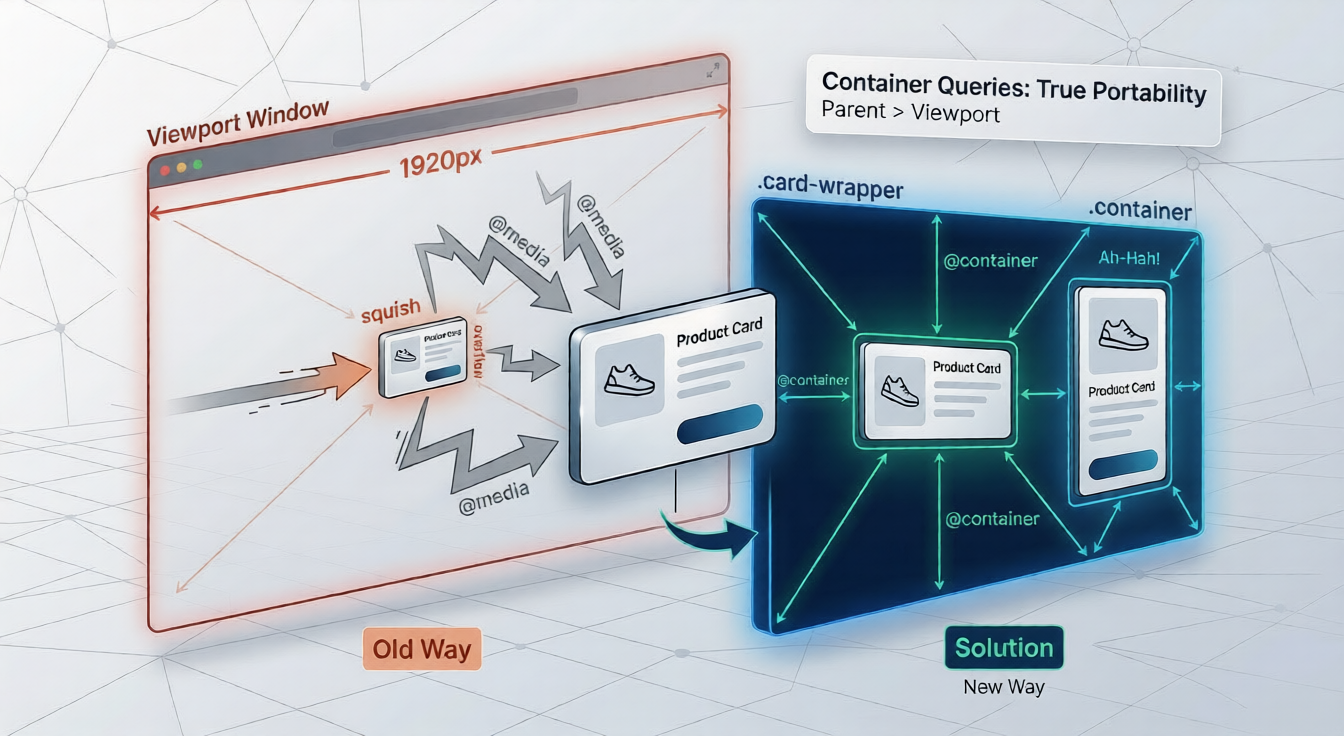
You’ve built the perfect product card. Image on the left, details on the right, price badge sitting neatly in the corner. You test it in the main content area and it’s gorgeous. Then your designer drops it into a 280px sidebar and everything falls apart — text overflows, the image squishes, and the whole layout looks like it was designed by someone who hates users.
So you reach for @media (max-width: 768px). But here’s the problem: the sidebar is narrow on desktop too. The viewport is 1440px wide, your card has 280px of space, and your media query has absolutely no idea about any of that. It only knows about the window.
Some developers solve this with ResizeObserver, toggling CSS classes from JavaScript whenever a component changes size. It works, but it’s fragile, adds JavaScript to a purely visual problem, and frankly, CSS shouldn’t need a babysitter.
CSS container queries are the fix. They let a component ask “how much space do I actually have?” rather than “how big is the browser window?” — and adjust its own layout accordingly. They’ve been fully supported across all major browsers since early 2023, and as of 2026, they sit at roughly 96% global coverage. There’s no good reason not to be using them.
In this post, you’ll learn exactly how they work — from the core mental model through the full syntax — and you’ll build a responsive product card that handles every context it’s dropped into without a single line of JavaScript.
The Problem with Viewport Thinking
For most of the web’s history, “responsive design” meant “responsive to the browser window.” Media queries let you write rules like “when the screen is wider than 768px, show a two-column layout” — and for a long time, that was enough.
It stopped being enough when we moved to component-based development. A card component might appear in a full-width hero section, a three-column product grid, a two-column comparison layout, a narrow sidebar, and a modal — all on the same page. Each context gives the card a different amount of horizontal space. But media queries only know one thing: how wide the viewport is.
Media queries ask: “How big is the screen?” Container queries ask: “How much space does my parent give me?” Those are entirely different questions with entirely different answers.
The classic workaround is to create multiple component variants — .card--small, .card--large — and apply them via JavaScript based on computed widths. Or you use ResizeObserver to watch a container and toggle classes. Both approaches work, but they’re indirection: you’re solving a CSS layout problem with JavaScript scaffolding.
Container queries eliminate that scaffolding entirely. The styling logic lives in CSS, where it belongs.
What Are CSS Container Queries?
The core idea is simple: you register an element as a “container,” and then write conditional CSS rules that fire when that container hits certain dimensions. Children of the container can inspect it and adapt their own styles accordingly.
It’s the same mental model as media queries, but scoped to an element rather than the viewport. Once you internalize that shift, the syntax feels immediately familiar.
Container queries vs. media queries — who wins?
Both. They solve different problems and work best in combination.
| Use Case | Right Tool | Why |
|---|---|---|
| Page-level grid: 1 column → 3 columns | @media | This is genuinely about the viewport |
| Sidebar visibility on mobile | @media | Global layout decision |
| Product card stacked → horizontal | @container | Component reacts to its own space |
| Navigation items collapse | @container | Nav adapts to its wrapper, not screen |
| OS dark mode preference | @media | System preference, not element size |
Image srcset / sizes | @media | Browser picks images before CSS runs |
The mental model that works: page layout = media queries; component layout = container queries. Use media queries to arrange the boxes on the page, then let container queries handle what happens inside each box.
Where browser support stands
Container size queries — the kind we’ll be using throughout this post — have been stable across Chrome (v106+), Safari (v16+), Firefox (v110+), and Edge (v106+) since 2023. According to the 2025 State of CSS survey, 41% of developers have used them at least once, with awareness climbing to 86%. Style queries and scroll-state queries are newer and have patchier support, but we’ll touch on those at the end.
The Syntax, Demystified
Container queries involve exactly two steps: declare a container, then query it. Neither step is complicated, but there are a few gotchas worth knowing before you write your first one.
Step 1 — Declaring a container with container-type
You must explicitly opt an element into being a container. CSS doesn’t make every element queryable by default — for performance reasons, containment is opt-in.
/* The most common value — queries against width (inline axis) */
.card-wrapper {
  container-type: inline-size;
}

/* Both width AND height — requires explicit height to avoid collapse */
.fixed-panel {
  container-type: size;
  height: 400px;
}
Use inline-size in almost every case. The size value queries both axes but requires the container to have an explicit height — skip it unless you specifically need to query vertical space.
Step 2 — Naming containers (and when you must)
/* Longhand */
.sidebar {
  container-type: inline-size;
  container-name: sidebar;
}

/* Shorthand — name first, then type */
.sidebar {
  container: sidebar / inline-size;
}
When you leave out a name, @container queries match the nearest ancestor with containment applied. Add a name whenever you have nested containers and need to target a specific one.
Step 3 — Writing @container queries
/* Anonymous — matches nearest container ancestor */
@container (min-width: 400px) {
  .card {
    display: flex;
  }
}

/* Named — matches 'sidebar' container specifically */
@container sidebar (min-width: 300px) {
  .nav-item {
    font-size: 0.9rem;
  }
}

/* Modern range syntax — works in all supporting browsers */
@container (width >= 400px) {
  .card {
    flex-direction: row;
  }
}
The shorthand: container: name / type
The container shorthand lets you declare both name and type in one line. Name comes first, then a slash, then the type:
.card-wrapper {
  container: product-card / inline-size;
}
Tip: CSS nesting lets you place @container queries right inside your component’s ruleset, keeping all related styles together. This is a great pattern for component-based CSS architecture.
Build It — A Responsive Product Card
Let’s build a product card that handles three layouts automatically: fully stacked (narrow containers like sidebars), side-by-side with a small image (medium containers like grid cells), and full horizontal layout with a large image (wide contexts like featured sections). No JavaScript, no component variants, no duplicate CSS.
The HTML structure
<!--
  The wrapper is the container.
  The card itself is what we style.
  These must be DIFFERENT elements —
  a container cannot query itself.
-->
<div class="card-wrapper">
  <article class="product-card">
    <div class="card-image">
      <img src="product.jpg" alt="Blue canvas sneaker">
    </div>
    <div class="card-body">
      <span class="card-category">Footwear</span>
      <h2 class="card-title">Canvas Lo-Top</h2>
      <p class="card-desc">Classic court silhouette, updated with a lightweight sole.</p>
      <div class="card-footer">
        <span class="card-price">$89</span>
        <button class="card-cta">Add to cart</button>
      </div>
    </div>
  </article>
</div>
Base styles — mobile-first, stacked
Start with the stacked, narrow layout as the default. This is what the card looks like when dropped into any container less than 400px wide.
/* ── Declare the container ─────────────────────── */
.card-wrapper {
  container: product-card / inline-size;
}

/* ── Base card styles (narrow / stacked) ──────── */
.product-card {
  display: grid;
  grid-template-rows: auto 1fr;
  background: #fff;
  border-radius: 10px;
  overflow: hidden;
  box-shadow: 0 2px 12px rgba(0,0,0,.08);
}

.card-image img {
  width: 100%;
  height: 200px;
  object-fit: cover;
  display: block;
}

.card-body {
  padding: 16px;
  display: flex;
  flex-direction: column;
  gap: 8px;
}

.card-category {
  font-size: 0.7rem;
  text-transform: uppercase;
  letter-spacing: .08em;
  color: #888;
}

.card-title {
  font-size: clamp(1rem, 4cqi, 1.4rem); /* fluid — more on this below */
  font-weight: 700;
  line-height: 1.2;
}

.card-desc {
  font-size: 0.875rem;
  color: #555;
  display: none; /* hidden by default, revealed at wider sizes */
}

.card-footer {
  display: flex;
  align-items: center;
  justify-content: space-between;
  margin-top: auto;
}

.card-price {
  font-size: 1.1rem;
  font-weight: 700;
}

.card-cta {
  background: #111;
  color: #fff;
  border: none;
  border-radius: 6px;
  padding: 8px 16px;
  font-size: 0.8rem;
  cursor: pointer;
}
The first breakpoint — going horizontal at 400px
When the container is at least 400px wide, switch to a side-by-side layout with a smaller thumbnail. The description also appears at this point — there’s enough room to show it without it feeling cramped.
@container product-card (width >= 400px) {

  .product-card {
    grid-template-rows: unset;
    grid-template-columns: 140px 1fr;
  }

  .card-image img {
    height: 100%; /* fills the left column */
    min-height: 160px;
  }

  .card-body {
    padding: 20px;
  }

  .card-desc {
    display: block; /* reveal at this breakpoint */
  }

}
The second breakpoint — full layout at 600px
In a wide context — main content area, featured section, full-width placement — the image gets more space, the title grows, and the button becomes more prominent.
@container product-card (width >= 600px) {

  .product-card {
    grid-template-columns: 260px 1fr;
  }

  .card-image img {
    min-height: 220px;
  }

  .card-body {
    padding: 28px;
    gap: 12px;
  }

  .card-title {
    font-size: 1.5rem;
  }

  .card-cta {
    padding: 10px 24px;
    font-size: 0.875rem;
  }

}
That’s the complete card. Drop .card-wrapper into any layout — a three-column grid, a sidebar, a modal, a hero section — and the card adapts without any additional CSS, JavaScript, or component variants.
Key insight: The breakpoints (400px, 600px) refer to the container’s width, not the viewport. A card in a 300px sidebar on a 1920px screen uses the stacked layout. The same card in a 650px main column uses the full horizontal layout. That’s the whole point.
Container Query Units — Your New Best Friends
Container queries don’t just let you write conditional blocks — they come with a set of length units that let child elements size themselves proportionally to their container, similar to how vw and vh work for the viewport.
| Unit | Meaning |
|---|---|
cqw | 1% of the container’s width |
cqh | 1% of the container’s height |
cqi | 1% of the container’s inline size (usually width) |
cqb | 1% of the container’s block size (usually height) |
cqmin | Smaller of cqi or cqb |
cqmax | Larger of cqi or cqb |
When to use cqi over cqw
According to CSS-Tricks, cqi and cqb are the logical equivalents of cqw and cqh — meaning they automatically flip to the correct axis in vertical writing modes. In horizontal writing mode (the default for most western languages), cqi and cqw are identical. But if you’re building for international audiences with vertical text, cqi does the right thing automatically. It’s a small habit worth getting into.
Combining container units with clamp()
The real power comes from pairing these units with clamp() for fluid typography that scales relative to the container rather than the viewport:
/* Title scales between 1rem and 2rem based on container width */
.card-title {
  font-size: clamp(1rem, 4cqi, 2rem);
}

/* Padding that breathes with available space */
.card-body {
  padding: clamp(12px, 3cqi, 32px);
}

/*
  The same component in a 200px container and a 600px container
  will scale its typography proportionally —
  no manual breakpoint juggling needed.
*/
Important: Container units cannot measure the element they’re applied to — only its container. If you apply width: 50cqw to .card-wrapper, it looks at the parent of .card-wrapper, not itself. This is by design (circular references would be a nightmare), but it trips people up.
Common Pitfalls (and How to Avoid Them)
Container queries have a handful of genuine gotchas. Knowing them ahead of time saves significant debugging time.
Container collapse with container-type: size. When you use size instead of inline-size, CSS severs the container’s relationship with its children for height calculation. Without an explicit height, the container collapses to zero. Josh W. Comeau calls this “the impossible problem”: you can’t measure something whose size depends on what you’re measuring. The fix is almost always to use inline-size instead, which only severs the width relationship and lets height grow naturally with content.
A container cannot query itself. You always need a wrapper element. The container element is the measuring stick; its children are what get styled. This is why the product card HTML above uses .card-wrapper as the container and .product-card as the styled element.
No CSS custom properties inside query conditions. This is a common trap: @container (min-width: var(--breakpoint)) is invalid and silently ignored. Container query conditions must use raw values. Store your breakpoint values in comments if you want to document them.
Flexbox content collapse. When a flex item becomes a container, its children can lose their intrinsic size information. You’ll need to give flex items either explicit sizes or ensure they have intrinsic sizing to avoid content collapse inside container queries.
Nested containers match the nearest ancestor. If you drop a component with container queries inside an element that also has container-type, the queries will match that inner container — not the outer one you might have intended. Use named containers to be explicit about which ancestor you’re querying.
Inline elements can’t be containers. You can’t use container-type on a span unless you change its display to something non-inline. Any block-level or flex/grid element works fine.
Container Queries + Media Queries — The Right Mental Model
The most productive way to think about this isn’t “container queries are replacing media queries.” It’s that they complete the picture. You need both, and they operate at different scopes.
Media queries own the page shell. They’re the right tool for deciding how many grid columns exist, whether a sidebar is visible, global typography scale adjustments, and OS-level preferences like dark mode or reduced motion. These are decisions that genuinely belong at the viewport level.
Container queries own the components. Once you’ve established the page layout with media queries, container queries let each component adapt to whatever space it receives. The card doesn’t care that there are three columns — it cares how wide its column is.
/* Media query: page-level layout decision */
@media (min-width: 900px) {
  .product-grid {
    grid-template-columns: repeat(3, 1fr);
  }
}

/* Container query: component-level decision */
.card-wrapper {
  container: product-card / inline-size;
}

@container product-card (width >= 400px) {
  .product-card {
    grid-template-columns: 140px 1fr;
  }
}

/*
  The grid arranges columns at the page level,
  and each card adapts to whatever column width it gets.
  Both tools, doing different jobs.
*/
One area where media queries still strictly win: image loading. The browser processes srcset and sizes attributes before CSS runs, so container queries don’t affect which image file gets fetched. If your product card image needs to load different resolutions based on context, you’ll still write that logic with @media in your sizes attribute.
Progressive Enhancement and Fallbacks
Container size queries sit at around 96% global support as of early 2026. For most projects that’s enough to use them directly. For the remaining 4%, a graceful fallback strategy is simple.
The base styles you write first — the stacked, narrow layout — work everywhere. Container query enhancements layer on top only where supported. That’s progressive enhancement built in by default.
For more control, use @supports:
/* Base styles work for all browsers */
.product-card {
  display: grid;
}

/* Container query enhancements for supporting browsers */
@supports (container-type: inline-size) {
  .card-wrapper {
    container: product-card / inline-size;
  }

  @container product-card (width >= 400px) {
    .product-card {
      grid-template-columns: 140px 1fr;
    }
  }
}
In browsers that don’t support container queries, the card stays stacked — a perfectly usable layout. Browsers that do support them get the adaptive behaviour. No JavaScript polyfills required.
What’s Coming Next — Style Queries and Scroll-State Queries
Container size queries are the stable, production-ready foundation. But the container query spec includes two more variants worth knowing about.
Style queries let you apply styles based on the computed CSS properties of a container — including custom properties. This enables things like theme-aware components that read a --theme custom property from their parent and adapt accordingly, without JavaScript. Custom property style queries work in most evergreen browsers today; querying standard CSS properties has broader support coming soon.
:root {
  --card-theme: light;
}

.promo-section {
  --card-theme: dark;
  container-type: inline-size;
}

/* Card detects its parent's theme without a class toggle */
@container style(--card-theme: dark) {
  .product-card {
    background: #111;
    color: #fff;
  }
}
Scroll-state queries are newer still, landing in Chromium-based browsers in early 2025. They let you style a container’s children based on scroll state — whether the container is currently stuck (as a sticky element), snapped, or scrollable. A navigation bar that adds a shadow only when stuck is the canonical use case, and it’s genuinely elegant CSS.
The 2025 State of CSS survey shows style and scroll-state queries still sit at very low adoption (7% and under 1% respectively), largely because developers are still catching up with the more mature size queries. But awareness is growing fast, and both features are clearly where the spec is heading.
Putting It All Together
Container queries solve a problem that media queries structurally cannot: components that know their own available space. The product card you built in this post will slot into any layout — sidebar, grid cell, featured hero, modal — and adapt correctly, with no JS, no component variants, and no media-query magic numbers that only make sense in one specific context.
The migration path is low-risk and incremental. Start by identifying components in your codebase that appear in multiple layout contexts — cards, widgets, navigation elements. Add container-type: inline-size to their parent wrappers (it has no visual effect on its own). Then convert those components’ responsive rules from @media to @container, adjusting breakpoint values since you’re now measuring component width, not viewport width.
Keep page-level decisions — grid column counts, sidebar visibility, global font scale — in media queries. Let container queries handle everything inside the grid cells.
The mental model shift is small. The payoff — genuinely portable, context-aware components — is significant.
Further Reading
- MDN — Container Queries
- CSS-Tricks — CSS Container Queries Guide
- Josh W. Comeau — A Friendly Introduction to Container Queries
- Ahmad Shadeed — An Interactive Guide to CSS Container Queries
- web.dev — Container Queries
- LogRocket — Container Queries in 2026
- CSS-Tricks — Container Query Units: cqi and cqb
